Messaging
The messaging system displays all internal messages within the ENT.

A red dot in the menu indicates the number of unread messages.
The messaging service consists, upon opening, of two panels: on the left, the list of messages, and on the right, the details of the selected message.
At the top of the “Message list” panel, the following banner:

It shows the currently selected folder, the number of messages it contains, and the number of unread messages in it.
Four action buttons:
-

allows access to messaging settings.
-
 allows showing or hiding folders.
 -
 allows reloading the current folder.
  allows filtering unread messages.
There are four default messaging folders: Inbox, Drafts, Sent, and Trash. The “My Folders” directory allows organizing and sorting messages. The “Scheduled” folder is created when the first delayed message is scheduled.
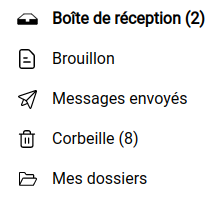
In the main panel, the list of messages and threads from the selected folder.
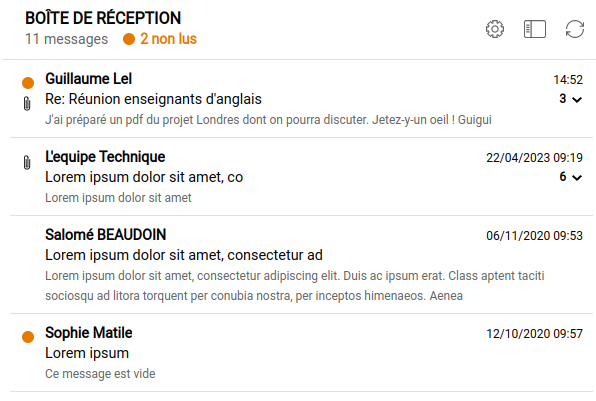
Messages marked with a colored dot indicate that the message is unread. Messages are sorted by descending date.
Multiple selection is possible by combining CTRL and SHIFT keys, or by long pressing on mobile.
Messages in the same conversation (replies, forwards) are included in a single thread. When a thread contains multiple messages (as in the first example), the number of messages is shown on the right, and clicking the thread expands the messages, as seen below.
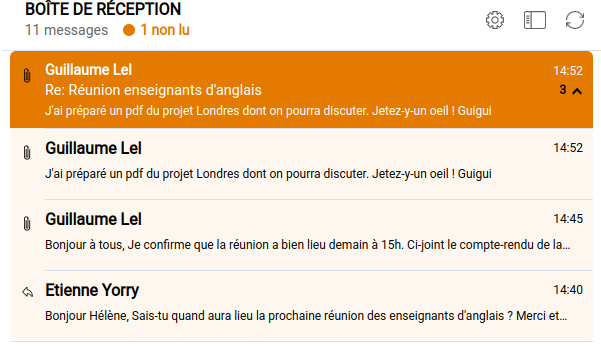
In a thread, the first message displayed is the oldest unread message, or if all messages are read, the latest message.
Several icons on the left of a message provide information:
The icon indicates that you have replied to the message.
The icon indicates that the message has been forwarded.
The icon indicates that the message contains one or more attachments.
The right panel displays the selected message or thread. At the top of this panel, four buttons allow you to delete, reply, reply to all, or forward the selected message(s).
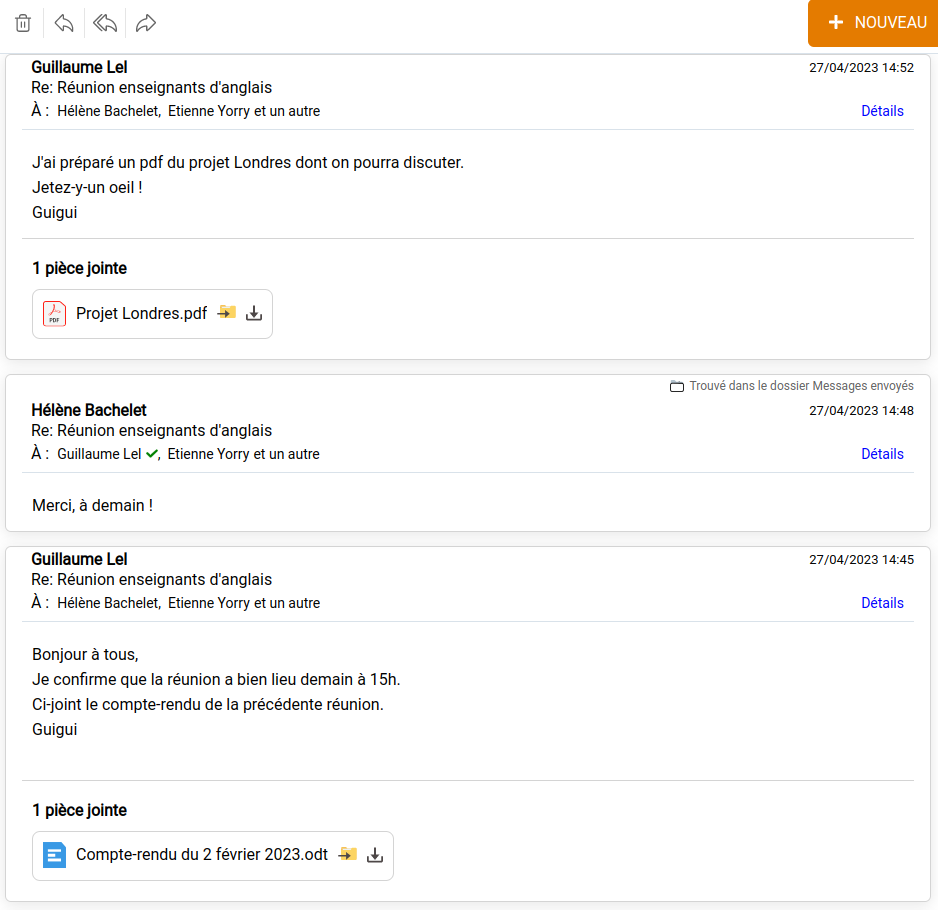
When a message from the thread is not in the current folder, a “Found in the ‘XYZ’ folder” label indicates which folder it was stored in.
Not all recipients of a message are displayed; clicking on the Details button reveals them.
For each attachment, it is possible to copy it to “My Documents” (and choose a destination folder) or to download it to your computer.