Manage the off-schedule
Off-schedule time slots are of 5 types: emergency, study circle, work to redo, detention, and expulsion. In this section, we will see how to create, modify, and delete off-schedule time slots.
Who can create an off-schedule time slot? School management, deans, and secretaries.
To do this, simply select the type of time slot.

Next, click on a time slot in the weekly planner or click and drag the mouse to select multiple slots. The creation window will then open:
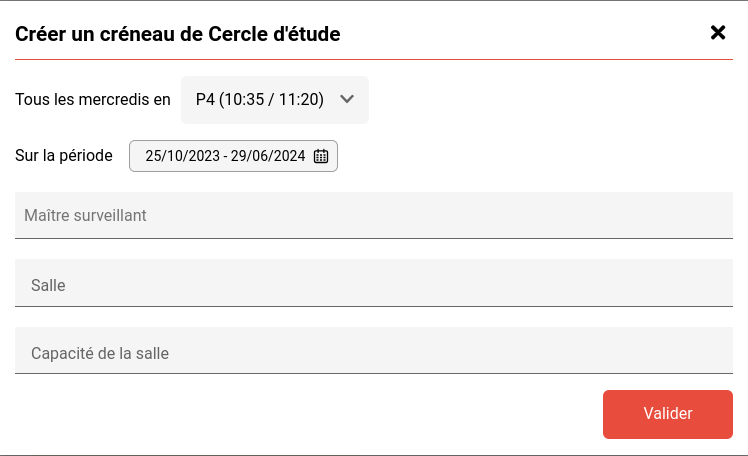
The default creation period is the school year, but it can be narrowed down to the desired dates.
Select a supervising teacher by typing the first few letters of their first name or last name. It is also possible to enter a secretary as the supervisor of the time slot.
Enter the room and the number of available places for this slot.
Click on Validate.
The time slot is then created recursively, every week at the same time, until the end of the year.
To modify an off-schedule time slot, click on the slot in the weekly planner, a small information window will open next to it, as shown below:
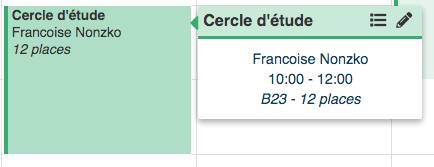
Click on the “Pencil” button to edit the slot. You will find the same information as in the creation window. The modification will impact all sessions of the edited slot, both past and future.
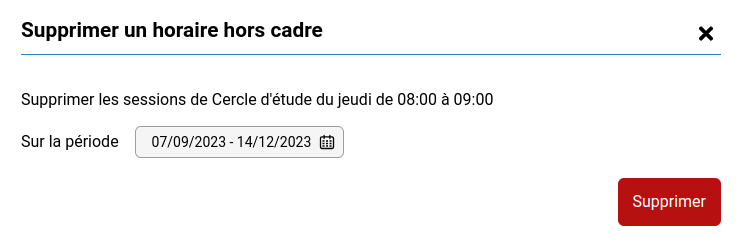
Additionally, a delete button allows you to remove sessions from this slot by specifying a date range (default is the entire year).